

Overview
The Google Drive integration allows you to search through your Google Drive files and folders. Google Docs, Sheets, and Slides are indexed through this integration — there is no separate connection for them. It supports both and .Authentication
The Google Drive integration can be set up as a personal connection or as a shared connection.Personal connection (OAuth)
Each user connects their own Google Drive account through an OAuth flow, available in Hyperspell as a personal connection without any additional setup. During the OAuth flow, users select which Google Drive folders they want to give access to.Shared connection
An app admin can instead register a single shared connection using a Google Cloud service-account key. Its data is synced once and made available to everyone in your app — no per-user OAuth required. The corpus is exactly what you share with the service account’s email address (Shared Drives it belongs to, plus any directly-shared files and folders). To create the service account and share content with it:1
Create a Google Cloud project
Navigate to Google Cloud Project Creation and create a new project.
2
Enable the Drive API
Go to Drive API page and enable the Drive API for your project.
3
Create a service account
Visit Service Accounts page and select Create service account.
4
Set the Service Account ID
Set the Service Account ID to
hyperspell and click Create and Close.5
Copy the service account's email address
Click on the service account you just created (e.g.
hyperspell@<your-project-name>.iam.gserviceaccount.com) and copy its email address — you’ll need it later.6
Download the service account JSON key
Go to the Keys tab, click Add Key, and choose JSON. This will download a JSON key file.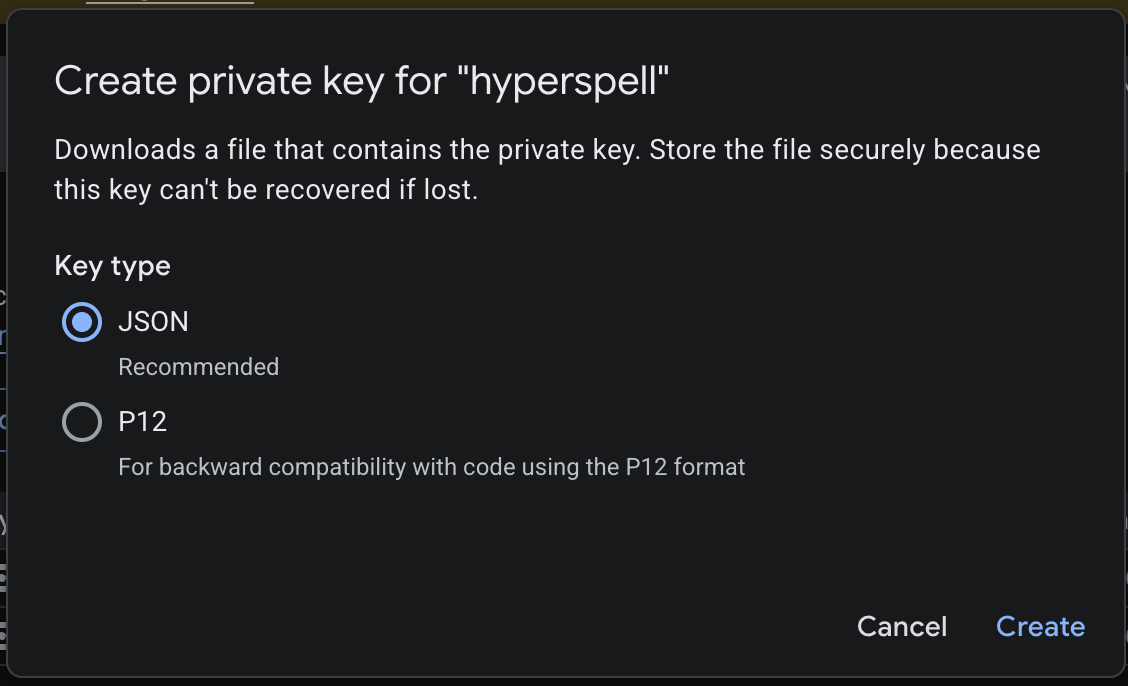
7
Extract the private key from the JSON file (macOS)
Extract the private key from the downloaded JSON file with the following terminal command:
8
Share Google Drive content with the service account
Go to Google Drive and find the content you want to share (e.g., a shared drive).
9
Manage sharing permissions
Click the triple dots and choose Manage members (or Share).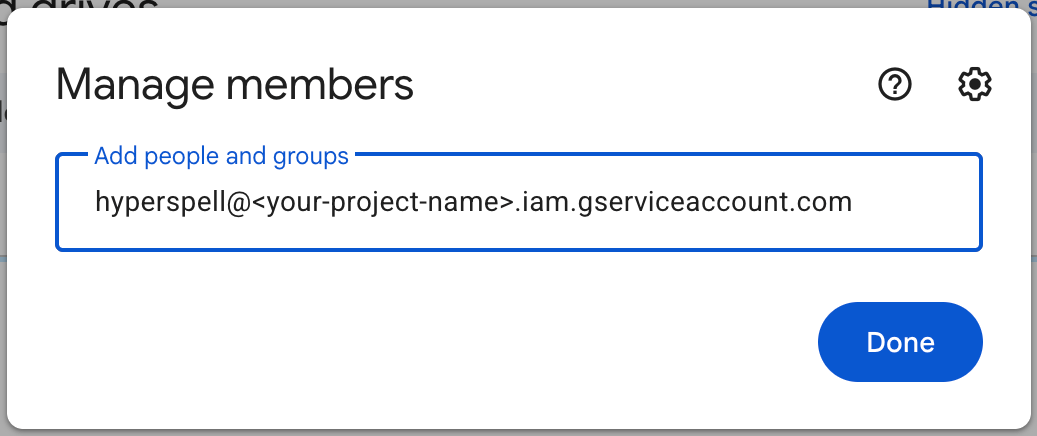
10
Add the service account to your content
Enter the service account’s email address and click Done.
Dealing with Google access issues
If, while connecting to a Google Service using OAuth, you get an error about “This app is blocked”, you need an super admin to unblock it.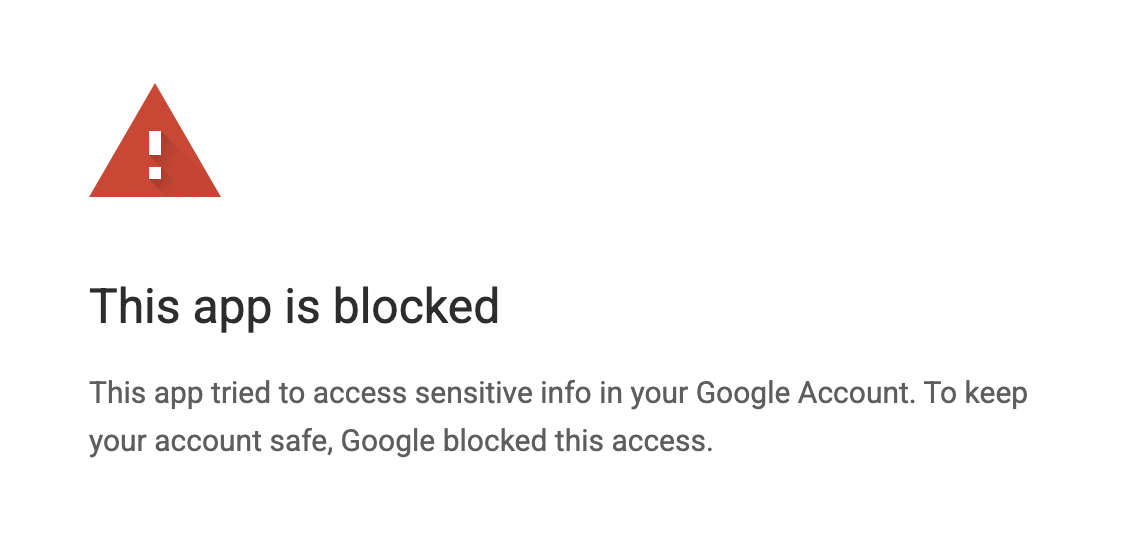
This app is blocked
1
Go to Manage App Access in Google Workspace admin
2
Click “Configure New App” and search for Hyperspell
Make sure that the Client ID matches
918787848500-ghmdrurivrpf8s48btbmfnkfglo61il8.apps.googleusercontent.com3
Select Hyperspell, and in the following two screens choose “all users” and “Trusted”.