The Hyperspell app for Microsoft Teams answers questions from your company brain in a chat or a channel. Setting it up takes three steps: connect your Microsoft 365 tenant from the Hyperspell dashboard, add the app in Teams, then message it. Plan on about 15 minutes.
The Teams app is available for accounts in the US region. It is not yet available in the EU region. If you don’t see a Teams Bot tab under Settings in the dashboard, contact us.

Before you start

You need two people, or one person with both roles:
  • A Hyperspell admin: the owner of your Hyperspell app, or an admin of its organization. They connect the tenant from the dashboard.
  • A Microsoft 365 admin: a Global Administrator or Teams Administrator of your Microsoft 365 tenant. They sign in to Microsoft during the connection, and they add the app in Teams.
Connecting the tenant only tells Hyperspell who signed in and which tenant they administer; that sign-in grants no access to your tenant’s data. The Teams app itself, once added, can read the messages in the chats and channels it is added to, so it can follow the conversation a question is asked in. Teams lists these permissions when an admin adds the app.

Set up the Teams app

1

Connect your Microsoft 365 tenant

  1. In the Hyperspell dashboard, open Settings and choose Teams Bot.
  2. Click Add to Microsoft Teams.
  3. Microsoft asks you to sign in. Use your Microsoft 365 Global Administrator or Teams Administrator account.
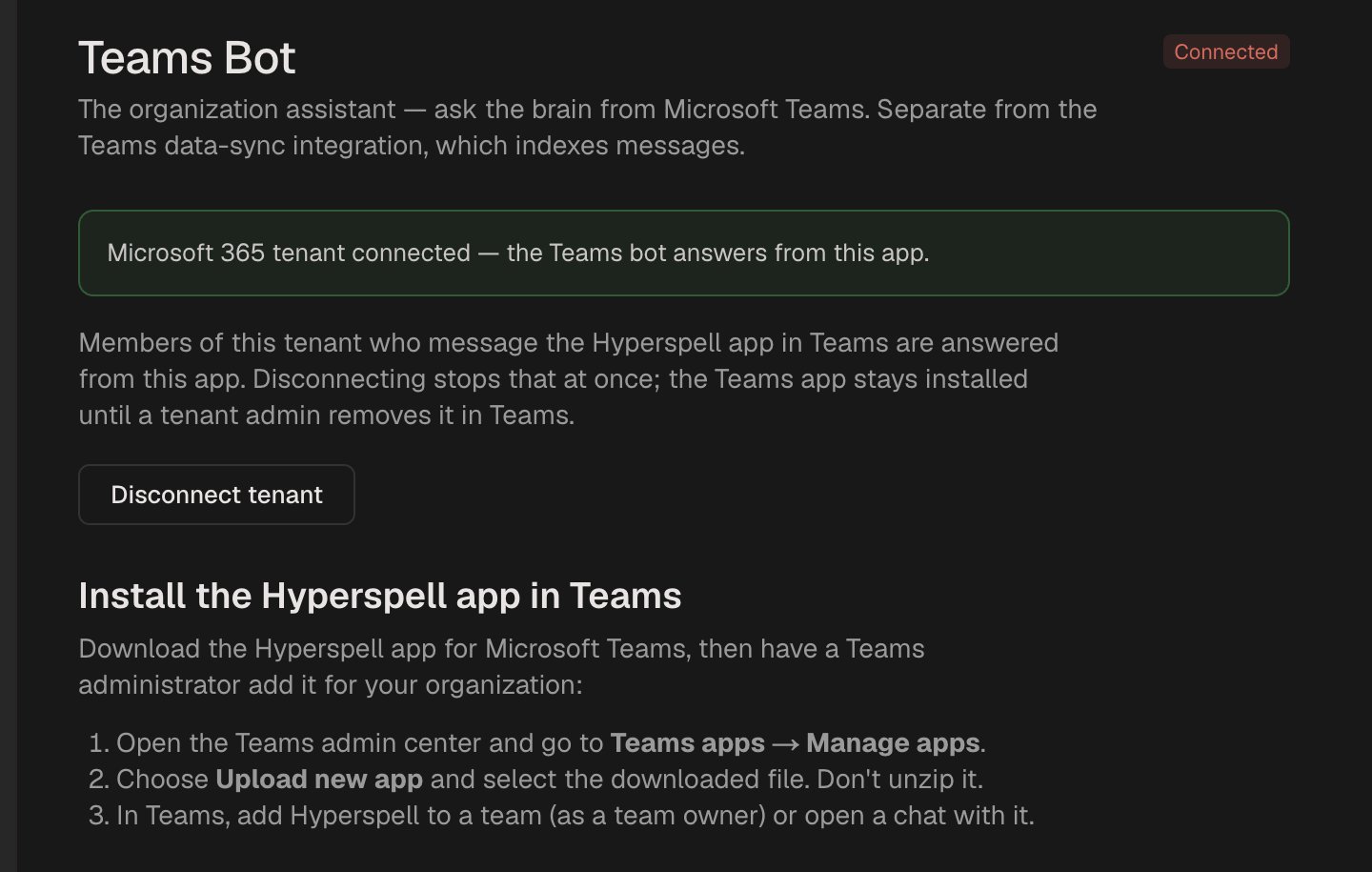
You return to the Teams Bot tab, which now shows your tenant as connected:
The Teams Bot tab in the Hyperspell dashboard, showing the Microsoft 365 tenant as connected
One Microsoft 365 tenant connects to one Hyperspell app. Members of that tenant are answered from that app.
2

Add the Hyperspell app in Teams

On the Teams Bot tab, click Download Teams app. Keep the file zipped. Then a Teams administrator adds it in either of two ways.From the Teams admin center:
  1. Open the Teams admin center and go to Teams apps, then Manage apps.
  2. Open Actions, choose Upload new app, and select the downloaded file.
From the Teams app (use this if the admin center isn’t ready yet; see Troubleshooting):
  1. In Teams, open Apps in the left rail, then Manage your apps at the bottom.
  2. Choose Upload an app, then Upload an app to your org’s app catalog, and select the downloaded file.
The app appears under Apps, then Built for your org. It can take up to 30 minutes to show up.
3

Message Hyperspell

In Teams, open Apps, then Built for your org, choose Hyperspell and click Add. Send it a message such as “hi”:
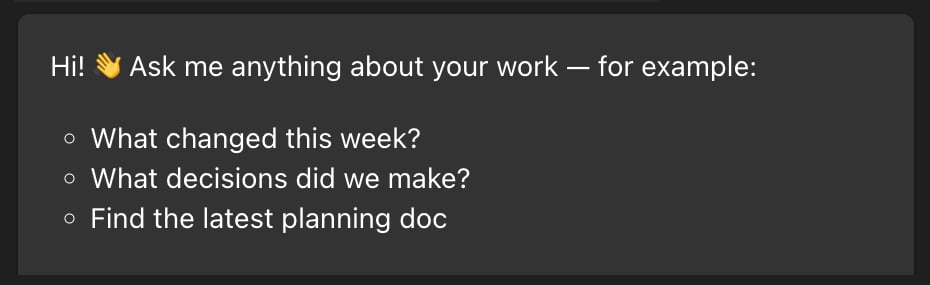
Hyperspell's first reply in a Teams chat, suggesting questions to ask
To use it in a channel, a team owner adds Hyperspell to the team. Then mention @Hyperspell in a message.

Who gets answers

What an answer can draw on depends on where the question is asked:
  • In a personal chat with Hyperspell, it answers from what the asker’s own Hyperspell account may see, the same as in the dashboard.
  • In a channel or group chat, everyone there reads the answer, so it uses only content shared with your whole company. If the asker’s own documents add something, Hyperspell sends that to them separately, in their personal chat with it.
Hyperspell recognizes someone when the email address of their Microsoft 365 account matches their Hyperspell account and they have connected at least one source of their own. Connecting the mailbox for that address works too. Someone Hyperspell can’t match still gets a reply, but it can’t show them anything private. If a colleague’s answers come back empty, check that their Hyperspell account uses the same email address as their Microsoft 365 account.

Troubleshooting

Hyperspell replies “Your organization isn’t connected to Hyperspell yet”. The tenant this person is in isn’t connected to a Hyperspell app. Check that the Teams Bot tab shows Connected, and that the admin who connected it signed in to the same Microsoft 365 tenant the person uses.
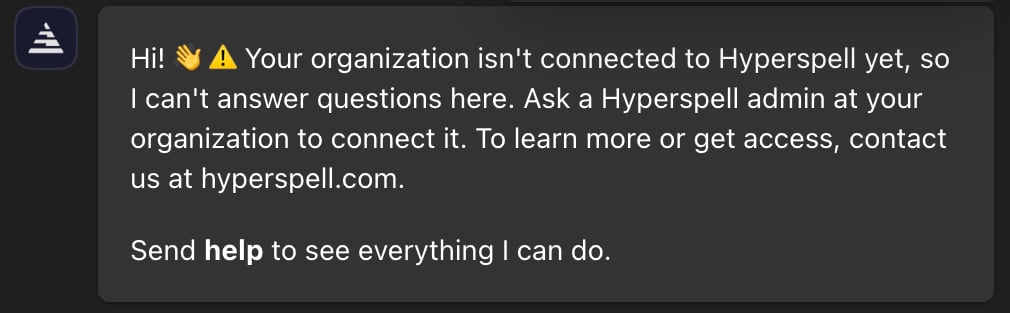

Hyperspell's reply in Teams when the tenant isn't connected yet
The Teams admin center says “We’re setting up your new app management experience” and Actions is greyed out. New Microsoft 365 tenants show this while Microsoft finishes setting them up. It says 30 minutes, but it can take several hours. You don’t need to wait: add the app from the Teams app instead (step 2).
The Teams admin center's Manage apps page with the 'setting up your new app management experience' banner
The app was uploaded but doesn’t appear under Built for your org. Give it up to 30 minutes. Then sign out of Teams and back in, or open Teams on the web, which doesn’t cache the app list. Teams shows “We’re having trouble loading your messages” in the Hyperspell chat. That message comes from Teams itself. Click Refresh, or open the chat in Teams on the web. Add to Microsoft Teams is greyed out. Only the owner of the Hyperspell app or an admin of its organization can connect a tenant. The Microsoft sign-in says you need an administrator. Sign in with an account that is a Global Administrator or Teams Administrator of the tenant. Answers come back empty for someone. See Who gets answers. Still stuck? Contact us.