> ## Documentation Index
> Fetch the complete documentation index at: https://docs.hyperspell.com/llms.txt
> Use this file to discover all available pages before exploring further.

# Hyperspell Connect

> Let your users connect their accounts to Hyperspell to automatically index data

export const ConnectConfigurator = () => {
  const AVAILABLE_PROVIDERS = [{
    value: 'google_mail',
    label: 'Google Mail'
  }, {
    value: 'slack',
    label: 'Slack'
  }, {
    value: 'google_calendar',
    label: 'Google Calendar'
  }, {
    value: 'notion',
    label: 'Notion'
  }, {
    value: 'google_drive',
    label: 'Google Drive'
  }, {
    value: 'box',
    label: 'Box'
  }];
  const [token, setToken] = useState('');
  const [redirectUri, setRedirectUri] = useState('');
  const [autoclose, setAutoclose] = useState(false);
  const [redirectMode, setRedirectMode] = useState(false);
  const [font, setFont] = useState('');
  const [selectedProviders, setSelectedProviders] = useState([]);
  const [generatedUrl, setGeneratedUrl] = useState('');
  const generateUrl = () => {
    const baseUrl = 'https://connect.hyperspell.com';
    const params = new URLSearchParams();
    if (token) {
      params.append('token', token);
    }
    if (redirectUri) {
      params.append('redirect_uri', redirectUri);
    }
    if (autoclose) {
      params.append('autoclose', 'true');
    }
    if (font) {
      params.append('font', font);
    }
    if (redirectMode) {
      params.append('popup', 'false');
    }
    if (selectedProviders.length > 0) {
      params.append('providers', selectedProviders.join(','));
    }
    const queryString = params.toString();
    const finalUrl = queryString ? `${baseUrl}?${queryString}` : baseUrl;
    setGeneratedUrl(finalUrl);
  };
  const copyToClipboard = () => {
    if (generatedUrl) {
      navigator.clipboard.writeText(generatedUrl).then(() => {
        console.log('URL copied to clipboard!');
      }).catch(err => {
        console.error('Failed to copy URL: ', err);
      });
    }
  };
  const openUrl = () => {
    if (generatedUrl) {
      window.open(generatedUrl, '_blank');
    }
  };
  useEffect(() => {
    generateUrl();
  }, [token, redirectUri, autoclose, redirectMode, font, selectedProviders]);
  return <div className="p-6 border dark:border-zinc-950/80 rounded-xl not-prose bg-zinc-50/50 dark:bg-zinc-950/20">
            <div className="space-y-6">
                <div className="grid grid-cols-1 md:grid-cols-2 gap-4">
                    <div className="space-y-2">
                        <label className="block text-sm font-medium text-zinc-950/80 dark:text-white/80">
                            User Token <span className="text-red-500">*</span>
                        </label>
                        <input type="text" value={token} onChange={e => setToken(e.target.value)} placeholder="Enter your user token" className="w-full px-3 py-2 border border-zinc-950/20 dark:border-white/20 rounded-lg bg-white dark:bg-zinc-950/50 text-sm focus:outline-none focus:ring-2 focus:ring-blue-500" />
                    </div>

                    <div className="space-y-2">
                        <label className="block text-sm font-medium text-zinc-950/80 dark:text-white/80">
                            Redirect URI
                        </label>
                        <input type="url" value={redirectUri} onChange={e => setRedirectUri(e.target.value)} placeholder="https://your-app.com/callback" className="w-full px-3 py-2 border border-zinc-950/20 dark:border-white/20 rounded-lg bg-white dark:bg-zinc-950/50 text-sm focus:outline-none focus:ring-2 focus:ring-blue-500" />
                    </div>

                    <div className="space-y-2">
                        <label className="block text-sm font-medium text-zinc-950/80 dark:text-white/80">
                            Font
                        </label>
                        <input type="text" value={font} onChange={e => setFont(e.target.value)} placeholder="Roboto, Open+Sans+3, system-ui" className="w-full px-3 py-2 border border-zinc-950/20 dark:border-white/20 rounded-lg bg-white dark:bg-zinc-950/50 text-sm focus:outline-none focus:ring-2 focus:ring-blue-500" />
                    </div>

                    <div className="space-y-4">
                        <div className="space-y-2">
                            <label className="flex items-center space-x-2">
                                <input type="checkbox" checked={autoclose} onChange={e => setAutoclose(e.target.checked)} className="rounded border-zinc-950/20 dark:border-white/20 focus:ring-2 focus:ring-blue-500" />
                                <span className="text-sm font-medium text-zinc-950/80 dark:text-white/80">
                                    Auto-close
                                </span>
                            </label>
                            <p className="text-xs text-zinc-950/60 dark:text-white/60">
                                Automatically close and redirect when all integrations are connected.
                            </p>
                        </div>
                        <div className="space-y-2">
                            <label className="flex items-center space-x-2">
                                <input type="checkbox" checked={redirectMode} onChange={e => setRedirectMode(e.target.checked)} className="rounded border-zinc-950/20 dark:border-white/20 focus:ring-2 focus:ring-blue-500" />
                                <span className="text-sm font-medium text-zinc-950/80 dark:text-white/80">
                                    Disable popups
                                </span>
                            </label>
                            <p className="text-xs text-zinc-950/60 dark:text-white/60">
                                Use redirects instead of popups for OAuth. Recommended for Safari, mobile, and iFrames.
                            </p>
                        </div>
                    </div>

                    <div className="space-y-2 md:col-span-2">
                        <label className="block text-sm font-medium text-zinc-950/80 dark:text-white/80">
                            Providers
                        </label>
                        <p className="text-xs text-zinc-950/60 dark:text-white/60">
                            Select which integrations to show. Leave empty to show all configured integrations.
                        </p>
                        <div className="flex flex-wrap gap-2">
                            {AVAILABLE_PROVIDERS.map(provider => <label key={provider.value} className={`inline-flex items-center px-3 py-1.5 rounded-lg border cursor-pointer transition-colors text-sm ${selectedProviders.includes(provider.value) ? 'bg-blue-500 border-blue-500 text-white' : 'bg-white dark:bg-zinc-950/50 border-zinc-950/20 dark:border-white/20 text-zinc-950/80 dark:text-white/80 hover:bg-zinc-100 dark:hover:bg-zinc-800'}`}>
                                    <input type="checkbox" checked={selectedProviders.includes(provider.value)} onChange={e => {
    if (e.target.checked) {
      setSelectedProviders([...selectedProviders, provider.value]);
    } else {
      setSelectedProviders(selectedProviders.filter(p => p !== provider.value));
    }
  }} className="sr-only" />
                                    {provider.label}
                                </label>)}
                        </div>
                    </div>
                </div>

                {generatedUrl && <div className="space-y-3">
                        <div className="flex items-center justify-between">
                            <label className="block text-sm font-medium text-zinc-950/80 dark:text-white/80">
                                Generated URL
                            </label>
                            <div className="flex space-x-2">
                                <button onClick={copyToClipboard} className="px-3 py-1 text-xs bg-zinc-950/10 dark:bg-white/10 hover:bg-zinc-950/20 dark:hover:bg-white/20 rounded border border-zinc-950/20 dark:border-white/20 transition-colors">
                                    Copy
                                </button>
                                <button onClick={openUrl} className="px-3 py-1 text-xs bg-blue-500 hover:bg-blue-600 text-white rounded transition-colors">
                                    Open
                                </button>
                            </div>
                        </div>
                        <div className="p-3 bg-white dark:bg-zinc-950/50 border border-zinc-950/20 dark:border-white/20 rounded-lg">
                            <code className="text-sm break-all text-zinc-950/80 dark:text-white/80">
                                {generatedUrl}
                            </code>
                        </div>
                    </div>}

                {!token && <div className="p-3 bg-yellow-50 dark:bg-yellow-950/20 border border-yellow-200 dark:border-yellow-800/20 rounded-lg">
                        <p className="text-sm text-yellow-800 dark:text-yellow-200">
                            <strong>Note:</strong> A User Token is required to generate a valid Connect URL.
                        </p>
                    </div>}
            </div>
        </div>;
};

## Using Hyperspell Connect

Hyperspell Connect is a feature that allows your users connect their accounts to Hyperspell. To do so, you need to open `https://connect.hyperspell.com` with a [User Token](/usage/permissions#using-a-user-token) as a query parameter. Typically that involves putting a button in your app that looks like this:

```html theme={null}
<a href="https://connect.hyperspell.com?token=<user_token>">Connect your accounts</a>
<p>This app uses Hyperspell to securely connect your accounts.</p>
```

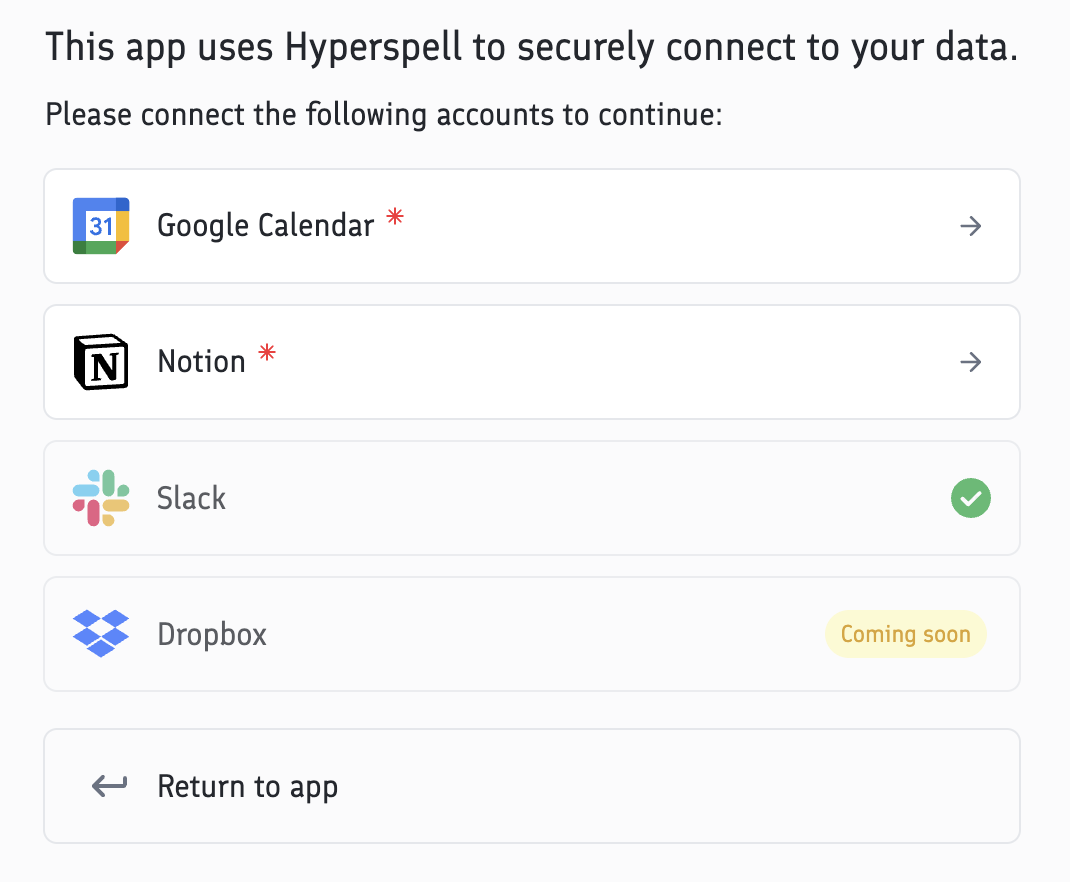
Hyperspell connect can be opened in a new tab, in an iFrame, or a web view for mobile apps. On the Hyperspell Connect page, your users will see a list of integrations you have enabled for your app, and they can choose which ones they want to connect to:
<Frame>
  <img src="https://mintcdn.com/hyperspell/IRNfACH6xQHvKFUm/images/connect-page.png?fit=max&auto=format&n=IRNfACH6xQHvKFUm&q=85&s=9ec2ff1fd0daa96013a8430df8245e2c" alt="Hyperspell Connect Example" width="535" data-path="images/connect-page.png" />
</Frame>

You can find out which integrations a user has connected to by calling the `GET /auth/me` endpoint with the user token or [using the SDK](/api-reference/authentication/get-basic-user-data). After a user has connected an integration, you can query the data right away.

## Configuration

There are several URL parameters that you can use to configure Hyperspell Connect.

<ParamField query="token" type="string" required>
  The [User Token](/usage/permissions#using-a-user-token) to identify your app and user.
</ParamField>

<ParamField query="redirect_uri" type="string">
  If set, the Connect page will show a button to return to your app. You can also set the Redirect URI in the settings page on the Hyperspell dashboard. If the `redirect_uri` URL parameter is set, it will override the Redirect URI in the settings page.
</ParamField>

<ParamField query="autoclose" type="boolean" default={false}>
  If a `redirect_uri` is provided, the Connect page will automatically close and return to the `redirect_uri` when the user has connected all integrations. If `providers` is also set, autoclose will trigger when all specified providers are connected.
</ParamField>

<ParamField query="providers" type="string">
  A comma-separated list of provider names to show on the Connect page (e.g., `slack,google_drive,notion`). Only the specified providers will be displayed, allowing you to show a subset of your configured integrations. Provider names are case-insensitive and use snake\_case format. If omitted or empty, all configured integrations are shown.
</ParamField>

<ParamField query="font" type="string">
  Specify a custom font to use for the Connect page to match your app's branding. You can use web-safe defaults such as `system-ui` (on iOS devices), `sans-serif` for the browser's default font, or any font from [Google Fonts](https://fonts.google.com/), such as `Roboto` or `Open+Sans+3` (Notice the `+` in the name instead of spaces).
</ParamField>

<ParamField query="popup" type="string">
  Set to `false` to use redirect-based OAuth instead of popups. In this mode, clicking an integration navigates the current browser window through the OAuth flow and back, rather than opening a popup window. This is recommended for Safari compatibility, mobile web views, and iFrame embeds where popups may be blocked.
</ParamField>

You can configure the link to your Connect page here:

<ConnectConfigurator />

## Directly connecting accounts

Instead of using the Hyperspell Connect interface, you can also directly start the flow to connect an account. To do so, you first need to get the ID of the integration you want to connect to. You can find the ID of an integration in [Dashboard](https://app.hyperspell.com/integrations), or you can programmatically get the ID of an integration using the [GET /integrations/list](/api-reference/integrations/list-all-integrations) endpoint.

To connect an account, simply direct your user to the following URL:

```
https://connect.hyperspell.com/link/<integration_id>?token=<user_token>&redirect_uri=<redirect_uri>
```

The user token is the same as you would use to open the Connect page. While the `redirect_uri` is optional, it's recommended to set it to your app's URL so that the user is redirected back to your app after the connection is complete.

For the most seamless experience, add `popup=false` so the entire flow happens in the same browser window with no popups:

```
https://connect.hyperspell.com/link/<integration_id>?token=<user_token>&redirect_uri=<redirect_uri>&popup=false
```

With `popup=false`, the user clicks "Connect Notion" in your app, sees the OAuth consent screen, authorizes, and is redirected straight back to your app.

You can also generate a link to connect an account using the [GET /integrations/\<integration\_id>/link](/api-reference/integrations/link-an-integration) endpoint, which will generate an URL with a temporary token that can be used to connect an account. This endpoint is also available as a tool in the [MCP Server](/advanced/mcp-overview), allowing your agents to programmatically connect an account on demand.

## How it works

As soon as the user has connected a data source, Hyperspell will automatically ingest and index data from that source.

Technically, the authorization flow with Hyperspell connect looks like this:

```mermaid theme={null}
sequenceDiagram
    participant app as Your App
    participant hs as Hyperspell
    participant connect as Hyperspell Connect
    participant service as 3rd Party <br /> (ie. Slack, Notion, ...)
    app ->> hs: Request user token
    hs ->> app: Generate user token
    app ->> connect: Open connect with user token
    activate connect
    connect ->> service: Request OAuth Permissions
    service ->> hs: Return access token
    hs ->> connect: Redirect user
    connect ->> app: Close connect & return to app
    deactivate connect
    note over app, service: The data source is now ready to query and to ingest data:
    loop Automatic ingestion
       service ->> hs: Ingest new data
    end
    rect rgb(111,120,144,.04)
       app ->> hs: Query with user token
       hs ->> service: Live search with access token
       service ->> hs: Return results
       hs ->> app: Return cleaned and ranked results
    end
```
